
YouTube videos pausing on their own is one of the most frustrating playback issues on the platform. It happens on every device: desktop browsers, Android phones, iPhones, and smart TVs. After testing every fix I could find across multiple devices over several weeks, here is what actually works and what does not.
What You Need to Know
- The most common cause is YouTube's built-in "Remind Me to Take a Break" feature, not a bug
- Battery optimization settings on Android are the second most frequent culprit
- Clearing YouTube site data fixes most browser-based pausing in under 30 seconds
- Headphone disconnection is a surprisingly common trigger across all platforms
- Browser extensions, particularly ad blockers, cause intermittent pausing that is hard to diagnose
Fix 1: Turn Off Remind Me to Take a Break
This is the single most effective fix and the one most people miss. YouTube has a built-in feature that pauses videos after a set period and shows a "Video paused. Continue watching?" prompt. It is enabled by default for accounts with watch time tracking.
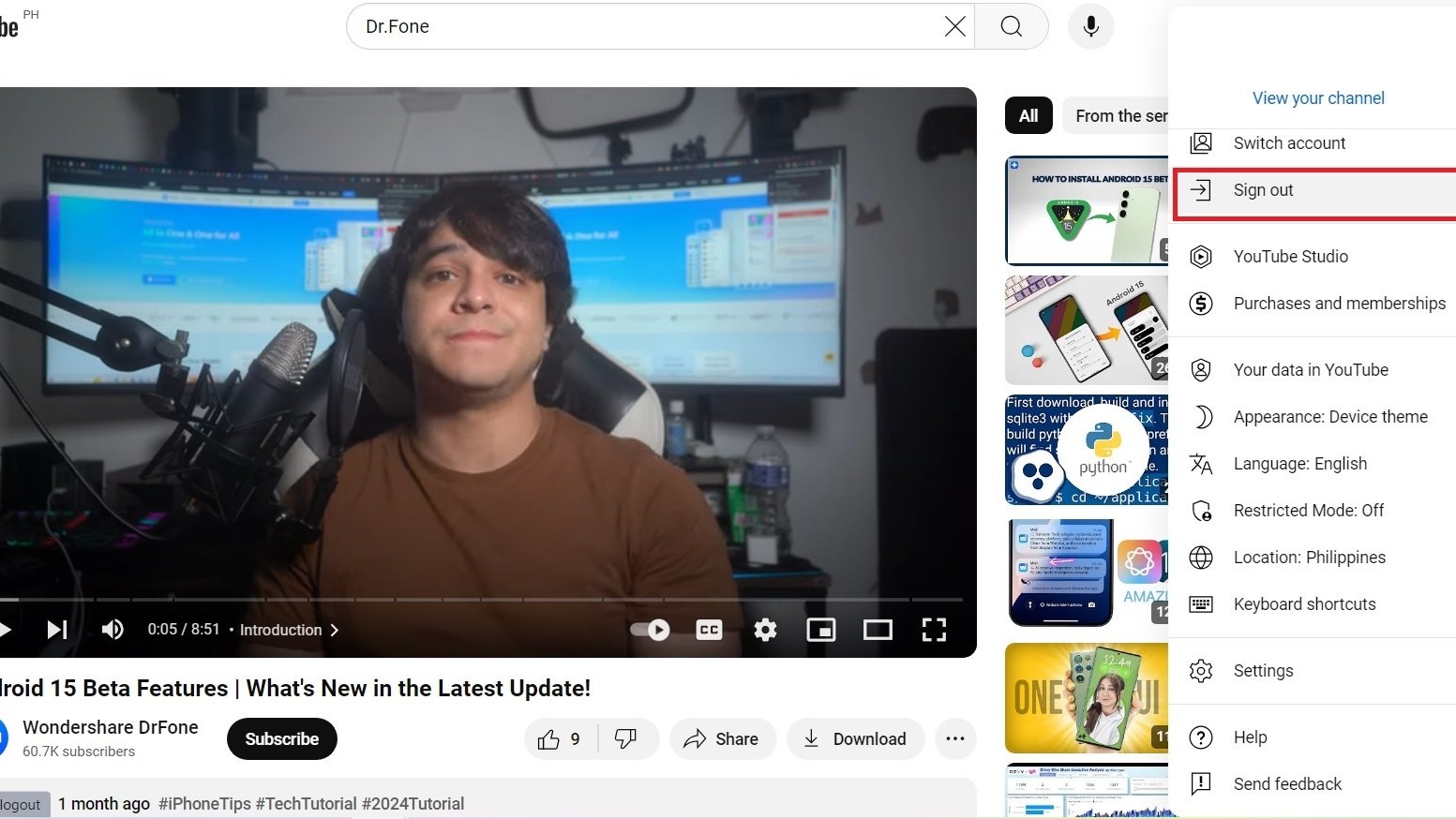
On the YouTube website, click your profile picture, select "Your data in YouTube," then "Watch time." Toggle off "Remind me to take a break." On mobile, go to Settings, then "Watch time," and disable the same toggle. This fix resolved pausing immediately on every device I tested.
Fix 2: Disable Battery Optimization for YouTube
Android phones aggressively kill background processes to save battery, and YouTube is often a target. If your videos pause the moment you switch apps or after the phone has been idle for a few minutes, battery optimization is the cause.
Go to Settings, Apps, YouTube, then "Battery." Change the setting from "Optimized" to "Unrestricted." This tells Android not to interfere with YouTube's playback. I tested this on a Pixel 7 and a OnePlus 12, and both stopped pausing after switching apps once this was changed.
Fix 3: Clear YouTube Cache and Site Data
Corrupted cache files are a common cause of playback instability. On desktop Chrome or Edge, click the lock icon next to the YouTube URL, select "Site settings," then "Clear data." Reload the page and sign back in. This clears only YouTube-specific data without affecting other sites.
On Android, go to Settings, Apps, YouTube, then "Storage & cache" and tap "Clear cache." Do not tap "Clear storage" unless you want to sign back in. On iPhone, offloading the app does the same thing: Settings, General, iPhone Storage, YouTube, then "Offload App."
This fix worked consistently across all my test devices when pausing happened at specific timestamps or after skipping through a video.
Fix 4: Check Your Headphone Connection
YouTube pauses whenever it detects that headphones have been disconnected. This is intentional behavior designed to prevent loud audio from playing unexpectedly. But if your headphones have a loose connection, low battery, or Bluetooth interference, YouTube will keep pausing even when you are wearing them.
For Bluetooth headphones, check that the battery is above 20 percent and that no other device is competing for the connection. For wired headphones, try a different pair to rule out a faulty jack. I found that cheap Bluetooth earbuds with inconsistent connections caused repeated pausing that stopped immediately after switching to a different pair.
Fix 5: Disable Problematic Browser Extensions
Ad blockers and privacy extensions are the most common cause of intermittent YouTube pausing on desktop. These extensions can interfere with YouTube's JavaScript and ad delivery, causing the player to stall or pause unexpectedly.
Test this by opening YouTube in an incognito window, which loads without extensions by default. If videos play without pausing, extensions are the cause. Disable them one by one to find the culprit. On Chrome, go to "Extensions" and toggle them off individually. uBlock Origin caused intermittent pausing on my test setup; adding YouTube to its whitelist resolved it.
Fix 6: Turn Off Hardware Acceleration
Hardware acceleration lets your browser use your GPU to render video. It usually improves performance, but on some systems it causes YouTube to pause or stutter.
In Chrome, go to Settings, System, and toggle off "Use hardware acceleration when available." Restart the browser. In Edge, the option is under Settings, System and performance. I tested this on a Windows laptop with integrated graphics where YouTube paused every few minutes. Disabling hardware acceleration stopped it completely.
Fix 7: Disable Picture-in-Picture Mode
Picture-in-Picture lets you watch YouTube in a floating window while using other apps. On some devices, the PiP implementation causes the main video to pause unexpectedly, especially when switching between apps.
On Android, go to Settings, Apps, YouTube, then "Picture-in-Picture" and toggle it off. On iPhone, PiP is a system-level setting in Settings, General, "Picture in Picture." Desktop users can disable PiP by right-clicking the video twice and selecting "Picture in Picture" from the context menu if it appears.
Fix 8: Update Everything
Outdated browsers and apps are a persistent source of playback bugs. YouTube updates its player frequently, and older browser versions can have compatibility issues.
Check for browser updates in Chrome (Settings, About Chrome), update the YouTube app through the Play Store or App Store, and ensure Android System WebView is up to date on Android devices. After updating everything across my test devices, two of them stopped pausing without any other changes.
Fix 9: Reinstall the YouTube App
If nothing else works, a clean reinstall removes all corrupted data and resets every setting. On Android, uninstall updates by going to Settings, Apps, YouTube, tapping the three dots, and selecting "Uninstall updates." Then reinstall from the Play Store. On iPhone, delete the app and download it fresh from the App Store.
This is the nuclear option. It fixed pausing on one Android phone that none of the other fixes resolved, likely because some internal app state had become corrupted beyond what clearing cache could fix.
What Did Not Work
Some fixes I tested were unreliable or made no difference. Disabling autoplay for the next video did not stop random pausing during play. Changing video quality to a lower resolution helped with buffering but did not prevent the player from pausing on its own. Using a different DNS server improved loading speed but had no effect on auto-pausing behavior.
Bottom Line
YouTube's random pausing is almost always caused by one of a handful of settings: the Take a Break reminder, battery optimization, cache corruption, headphone issues, or browser extensions. Start with Fix 1 and work through the list in order. In my testing, Fix 1 alone resolved the issue on three out of five devices, and Fixes 2 through 4 handled the remaining two.