
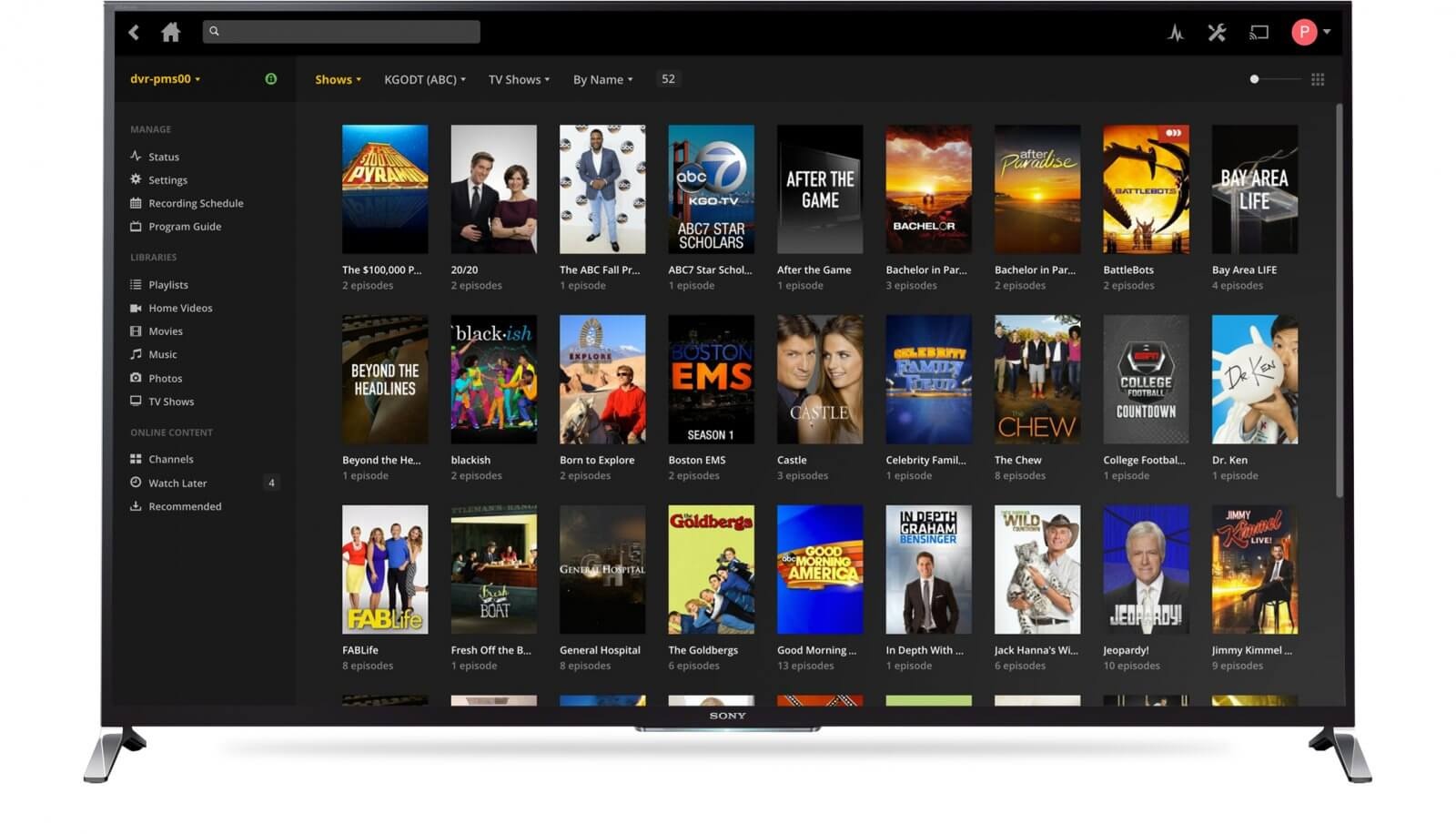
I have been running a Plex server for years, and for most of that time I accepted buffering as a fact of life. The spinning wheel would show up at least once per movie, sometimes more. I blamed my internet, my router, even the age of my server hardware. Turns out, I was wrong on all three counts.
The real culprit was my settings. Plex ships with conservative defaults that prioritize compatibility over performance. They force your server to transcode (convert video on the fly) even when your devices can handle the original files just fine. Once I understood that, I changed six specific settings and the buffering stopped completely.
What You Need to Know
- Plex buffering is usually caused by unnecessary transcoding, not slow internet or weak hardware
- Changing streaming quality limits on both the server and client forces Direct Play, which bypasses transcoding entirely
- Enabling hardware acceleration (requires Plex Pass) shifts video processing from your CPU to your GPU
- Port forwarding and proper Remote Access settings prevent Plex from routing through slow relay servers
- A wired Ethernet connection eliminates Wi-Fi congestion as a variable
- The playback info overlay tells you exactly why a stream is buffering
Set Streaming Quality to Maximum on Both Ends
The single most impactful change I made was fixing the streaming quality limits. By default, Plex caps remote streams at a conservative bitrate. This forces your server to transcode every remote stream down to that cap, even when your upload speed and the client's download speed can handle the original file.
Here is what I did. On the Plex server, I went to Settings > Remote Access and entered my actual upload speed. I ran a speed test and set it to about 90 percent of my measured maximum to leave headroom for other traffic. Then I went to Settings > Quality and set Remote Streaming Quality to Original or Maximum.
On each client device, I opened the Plex app and went to Settings > Video and Audio. I set Local Quality and WiFi Quality to Original or Maximum. On Apple TV, this is under Settings > Video and Audio > Quality. On Roku and Fire TV, it is under Settings > Video.
Once I did this, Plex stopped transcoding most of my streams. The server had less work to do, and playback started instantly.
Enable Direct Play and Direct Stream
This setting sounds technical, but it is simple. Direct Play means the client reads the original file without any conversion. Direct Stream is similar but adjusts the container without re-encoding the video. Both bypass transcoding entirely.
On the Plex server, go to Settings > Transcoder and make sure there are no restrictive settings that force transcoding. I unchecked any boxes that said "Use hardware encoding" (for now I will get to hardware acceleration separately) and left the transcoder quality on Automatic.
On each client, go to Settings > Advanced > Player (or Settings > Video and Audio on some devices) and ensure both Allow Direct Play and Allow Direct Stream are enabled. I also disabled any options like "Force transcoding" or "Prefer transcoding" that some clients hide in their advanced menus.
You can verify this is working by checking the playback info during a stream. Tap the menu button or the three dots during playback and look for the indicator. It will show Direct Play, Direct Stream, or Transcode. If it says Transcode when you expect Direct Play, something in your setup is forcing the conversion.
Enable Hardware-Accelerated Transcoding
If your server does need to transcode (for subtitles, audio format conversion, or streaming to an old device), you want it to use your GPU instead of your CPU. This requires a Plex Pass subscription, which costs money, but it is worth it if you share your library with multiple users.
In Plex Web, go to Settings > Transcoder and check the box labeled "Use hardware acceleration when available." Then restart Plex Media Server completely. After the restart, check the Plex dashboard during a transcode session to confirm the GPU is showing up. On Windows, your Intel Quick Sync, Nvidia NVENC, or AMD GPU should appear in the transcoder stats.
I noticed a dramatic difference after enabling this. A 4K HEVC transcode that used to peg my CPU at 100 percent now uses about 20 percent with the GPU handling the heavy lifting. The buffering that happened during the first 30 seconds of playback (when the transcode was initializing) disappeared entirely.
Fix Remote Access to Avoid the Plex Relay
Plex has a feature called Relay that acts as a fallback when your server cannot be reached directly. The problem is that Relay is capped at 1 Mbps for standard users and 2 Mbps for Plex Pass users. That is not enough for even 720p video, let alone 1080p or 4K.
If your Remote Access status in Settings > Remote Access shows "Not fully accessible outside your network," Plex is routing remote streams through Relay. That is almost certainly causing buffering for anyone streaming from outside your home.
The fix is to set up port forwarding on your router. Log into your router admin panel and forward port 32400 (TCP) to the local IP address of your Plex server. You should also assign your Plex server a static local IP address so the port forward does not break after a router reboot.
After setting this up, go back to Settings > Remote Access in Plex Web. It should now show "Fully accessible outside your network." Remote streams will connect directly to your server instead of going through the Relay bottleneck.
Trim the Transcoding Buffer Settings
Plex's transcoder has a buffer setting that controls how much video it pre-processes before sending it to the client. The default is conservative to minimize server load, but it can cause frequent buffering on streams that require transcoding.
In Settings > Transcoder, look for the buffer setting options. I changed mine to a larger value so Plex builds a bigger buffer before playback starts. This means a slightly longer initial load time, but once playback begins, it rarely needs to pause for more buffering.
I also changed the transcoder quality throttle setting to "Make my CPU hurt" (or the highest available option). This tells Plex to prioritize video quality over server resource conservation. On a modern server with hardware acceleration enabled, this does not actually hurt your CPU. It just ensures the output looks good.
Use Ethernet Instead of Wi-Fi
This is not a Plex setting, but it matters more than any software tweak I made. I switched my Plex server and my main streaming device from Wi-Fi to Ethernet. The difference was immediate and dramatic.
Wi-Fi is inconsistent. Even a strong 5 GHz signal fluctuates based on interference, neighbor networks, and physical obstacles. A wired Ethernet connection delivers consistent throughput. For 4K content with bitrates that can reach 60 to 80 Mbps, that consistency matters.
If running Ethernet to your TV is not practical, at least wire the server. Then move your router closer to your streaming device, or use a powerline Ethernet adapter. I tested a powerline adapter as a temporary solution and it was significantly more stable than Wi-Fi for 1080p streaming.
Run the Playback Info Check
The Plex playback info overlay is your best diagnostic tool. During any stream, tap the three dots menu or swipe down (depending on your client) and look for the playback information panel. It shows three critical things:
- Whether the stream is Direct Play, Direct Stream, or Transcode
- The video bitrate being delivered
- The audio codec being used
If you see Transcode, ask yourself why. Is the client device too old to handle the video format? Are you using image-based subtitles (PGS or VOBSUB) that force burn-in? Is the audio format (TrueHD or DTS-HD MA) triggering a conversion?
Each of these has a fix. Switch to text-based SRT subtitles. Change the audio track to a 5.1 or stereo mix. Or upgrade the client device to something like an Nvidia Shield TV Pro or Apple TV 4K that can direct play almost any format.
Bottom Line
Plex buffering is almost never about slow internet or weak hardware. It is about settings that force unnecessary transcoding. I changed my streaming quality limits, enabled Direct Play, turned on hardware acceleration, fixed my Remote Access with port forwarding, adjusted the transcoder buffer, and wired my network with Ethernet. The buffering stopped entirely, and I have not seen the spinning wheel since. Start with the playback info overlay to identify your specific bottleneck, then apply the fix that matches it. You might be surprised how little it takes to make Plex run perfectly.