
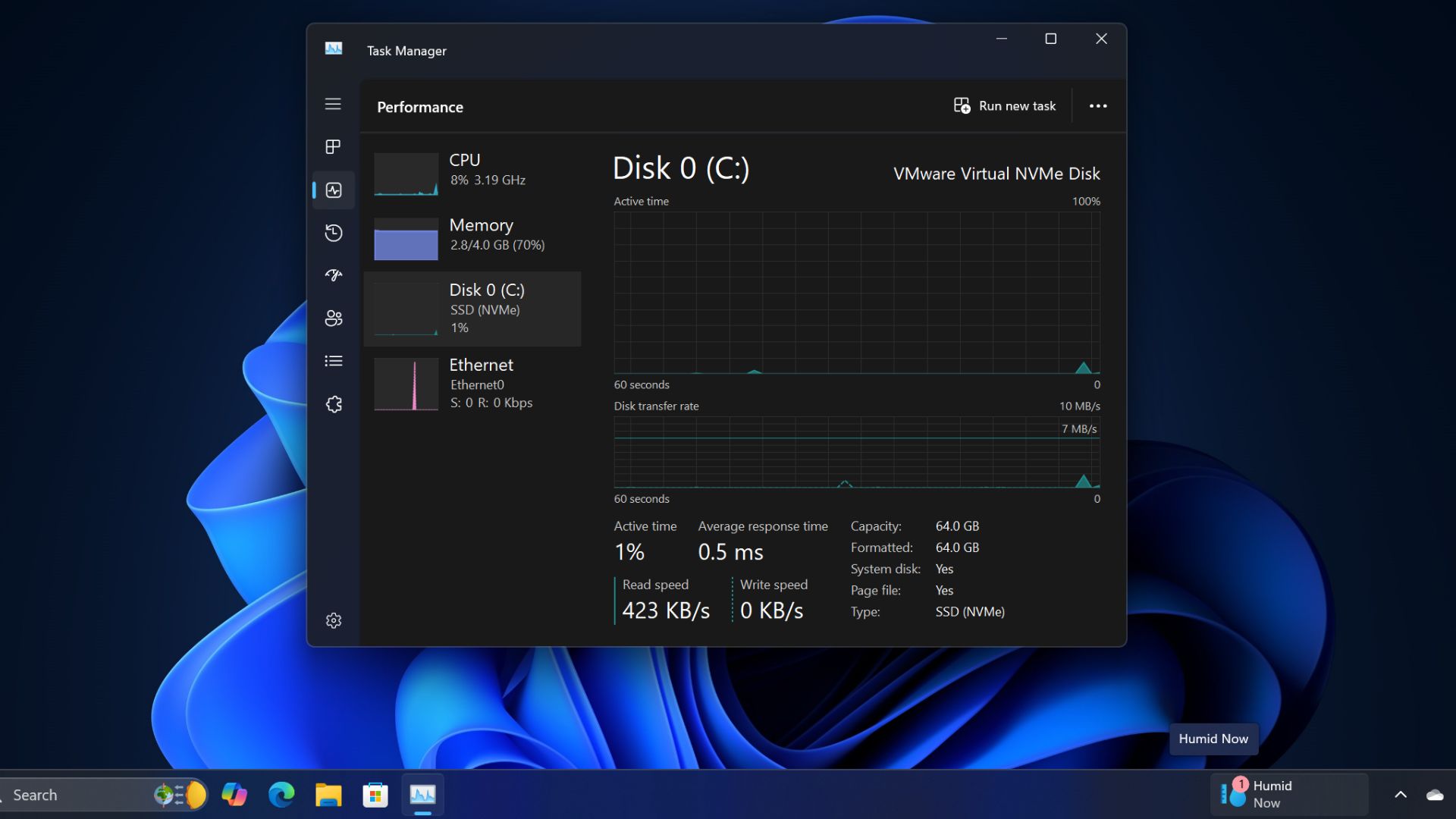
Every Windows user knows the feeling. Your PC starts fast and responsive on day one, but six months later it takes two minutes to boot, apps lag when switching, and the hard drive light stays solid for no obvious reason. I reached that point with my Windows 11 laptop and decided to fix it without resorting to a full reinstall.
Here is exactly what I did, step by step, and how much each step helped.
Step 1: Clean Up Startup Programs
The biggest culprit for slow boot times is the number of programs that launch automatically when Windows starts. I opened Task Manager by pressing Ctrl+Shift+Esc, went to the Startup tab, and looked at the list of enabled programs.
I disabled everything that did not need to run at boot. Discord, Spotify, Adobe updater, printer software, cloud sync clients that I could launch manually. I kept only my antivirus and the keyboard customization software. This cut my boot time from over two minutes to about 45 seconds.
The impact was immediate. The next restart felt like a different machine.
Step 2: Run Disk Cleanup and Storage Sense
Windows accumulates temporary files faster than most people realize. I ran the built-in Disk Cleanup tool and selected everything in the list. Windows update cleanup alone freed up over 8GB on my drive.
I also enabled Storage Sense in Settings > System > Storage. This automatically deletes temporary files, empties the Recycle Bin, and removes old Windows update files on a schedule. I set it to run weekly.
Step 3: Audit Background Apps
Many apps continue running in the background even after you close them. I went to Settings > Apps > Installed apps, selected each app, and chose Advanced options. For apps I did not need running in the background, I set Background app permissions to Never.
I also checked the system tray by clicking the up arrow near the clock. Several apps were running there unnecessarily. I opened each one and disabled the "run at startup" or "run in background" option in their settings.
Step 4: Review Browser Extensions
Browser extensions are a hidden performance drain. I had accumulated over 15 extensions in Chrome over the years. I removed the ones I no longer used and disabled the others until I needed them. The difference in page load times and general browser responsiveness was noticeable.
I also enabled hardware acceleration in Chrome settings, which offloads rendering to the GPU instead of the CPU.
Step 5: Disable Visual Effects
Windows 11 has plenty of visual flair, but it comes at a cost on machines with limited hardware. I went to Settings > Accessibility > Visual effects and turned off transparency effects and animations. Then I opened System Properties > Advanced > Performance Settings and selected Adjust for best performance.
The interface looks slightly less polished, but it feels instantly snappier on older hardware. On my machine, the lag when opening the Start menu and switching windows disappeared completely.
Step 6: Check for Malware
I ran a full scan with Windows Defender and then a second scan with Malwarebytes. The scans found some potentially unwanted programs that had installed themselves alongside other software. Removing them freed up system resources that I did not realize were being consumed.
Step 7: Optimize Power Settings
Windows 11 defaults to a Balanced power plan, which trades performance for energy savings. I switched to the High Performance plan in Control Panel > Power Options. On a laptop, this reduces battery life, but on a desktop or when plugged in, it ensures the CPU and GPU are not being artificially throttled.
Step 8: Check Drive Health
I ran wmic diskdrive get status in Command Prompt to check if my SSD was failing. It reported OK, but I also checked the drive's health using CrystalDiskInfo. A failing drive can cause slowdowns that no amount of software cleanup will fix.
The Results After One Week
Boot time went from 2 minutes 10 seconds to 38 seconds. App launch times dropped by roughly half. The system no longer stutters when switching between open windows. The total time spent on cleanup was under two hours.
I did not have to reinstall Windows, reinstall my applications, or reconfigure my settings. Every file, every saved password, every browser bookmark was exactly where I left it.
What Did Not Work
I tried a few things that made no noticeable difference. Third-party registry cleaners did nothing measurable. Disabling Windows Search indexing freed up some CPU cycles but made file searches slower. Modifying the paging file size did not change anything.
When a Reinstall Is Still the Better Option
This approach works if your slowdown is caused by accumulated junk, background processes, and unnecessary startup programs. If you have deeper issues like frequent blue screens, corrupted system files that cannot be repaired with SFC or DISM, or malware that has compromised system files, a clean install is still the right call.
Bottom Line
Most Windows 11 slowdowns are caused by software accumulation, not hardware failure. Before giving up and reinstalling, spend two hours cleaning up what you already have. It might be enough to make your PC feel new again.