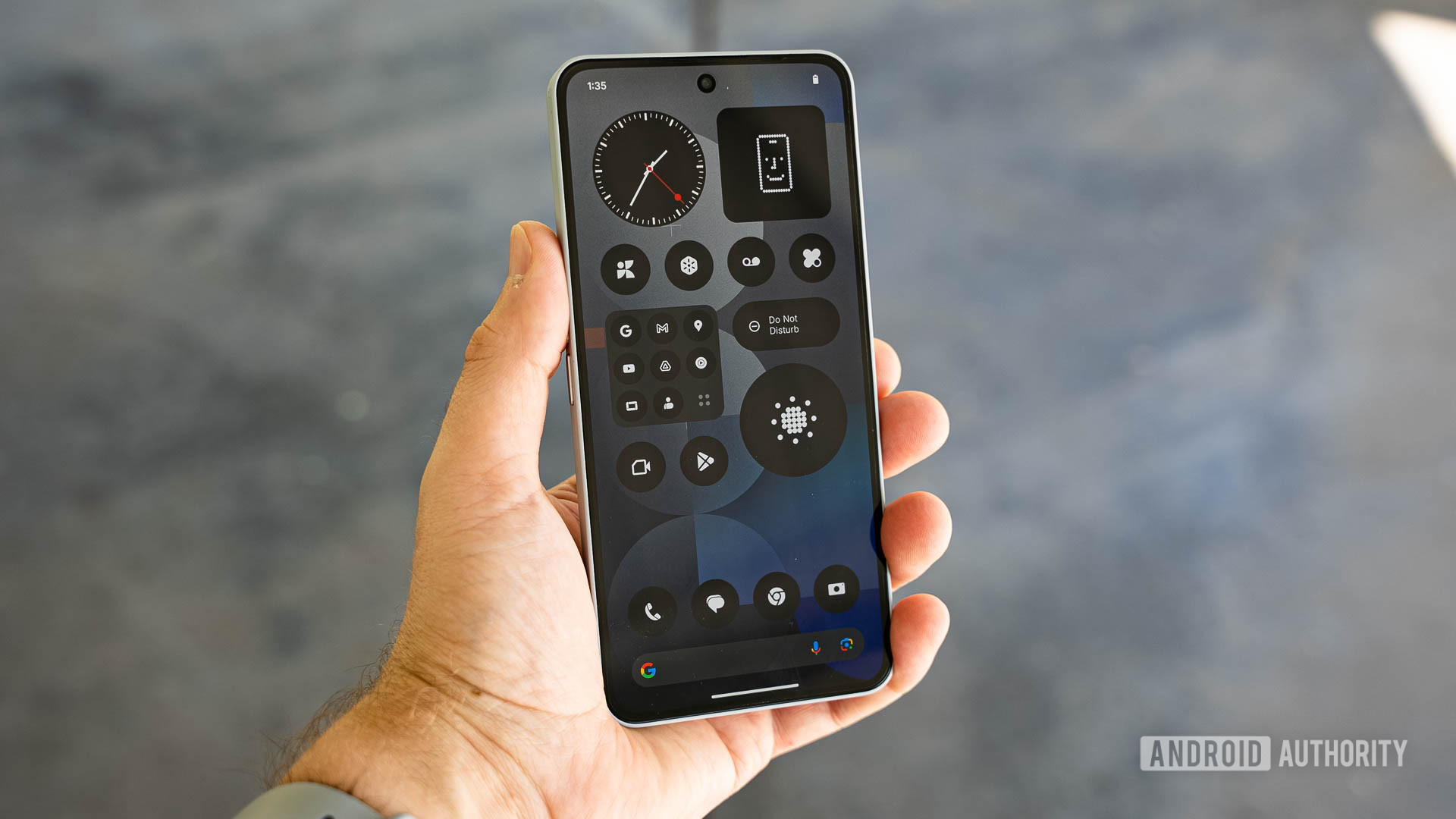
Nothing OS has built a reputation for being one of the cleanest Android skins around. It stays close to stock Android, adds the signature dot-matrix design language, and avoids the bloat that weighs down most other phone software. But after using a Nothing Phone (3a) as my daily driver for three months, I realized the most useful features are not the ones Nothing advertises. They are buried in submenus, hidden behind toggle names that do not sound exciting, and easy to skip during the initial setup. These are the four I wish I had enabled from day one.
What You Need to Know
- Extra Dark Mode pushes blacks deeper than the standard dark theme, saving battery on OLED displays and reducing eye strain at night
- Pop-up View with notification expansion lets you turn any notification into a floating app window without leaving your current screen
- App Hiding removes apps from your home screen and app drawer entirely, accessible only through a verified Hidden Folder
- App Optimization runs a system-level cleanup that clears caches and improves startup speed for frequently used apps
1. Extra Dark Mode
The standard dark mode in Nothing OS already looks good, but there is a second layer most users never find. Extra Dark Mode sits under Settings > Display > Dark Theme. Toggle it on and the interface shifts from a dark gray background to true black.
The difference is immediately visible on the home screen, settings panels, and compatible apps. On an OLED display, true black pixels are turned off completely, which saves battery and makes the content pop more. The feature also helps if you notice any slight green tint in low-light conditions, which some Nothing Phone (2a) and (3a) users reported with the standard dark theme.
There is no downside to keeping this enabled. Battery impact is minimal to positive, and the visual improvement is noticeable enough that going back to standard dark mode feels washed out.
2. Pop-Up View with Notification Expansion
Nothing OS supports pop-up view for multitasking, but the feature most people miss is the ability to open notifications directly into a floating window. When a notification arrives while you are in an app, swipe down on it with two fingers. Instead of switching to the app or dismissing the alert, the notification expands into a movable pop-up window.
This is useful for messaging apps, quick replies, or checking a ride status without leaving the page you are on. The floating window can be dragged anywhere on the screen, resized from the corners, and pinned to the edge for quick access. Nothing OS 4.0 even supports two floating windows simultaneously.
To enable this, go to Settings > Special Features > Pop-Up View and turn on Expand Notifications. Once enabled, it works across all apps that send notifications.
A small caveat: some apps handle notification expansion better than others. WhatsApp and Telegram work perfectly. A few third-party apps may open a blank pop-up, but this has improved significantly with Nothing OS 4.0 updates.
3. App Hiding and the Hidden Folder
Nothing OS 4.0 introduced the ability to hide apps from both the home screen and the app drawer. This is different from simply removing an app from the home screen, which everyone knows. Hiding an app removes it from every surface: no search results, no drawer entry, no home screen icon.
To hide an app, long-press its icon and select Hide. The app disappears from view entirely. To find it again, open the app drawer, tap the three-dot menu, and select Hidden Icons. The Hidden Folder requires fingerprint or PIN verification before it opens.
This is useful for sensitive apps like banking, private messaging, or expense trackers that you do not want visible when handing your phone to someone else. The feature also keeps the app drawer cleaner for users who install many apps but only use a handful regularly.
One thing to note: hiding an app does not uninstall it. Notifications from hidden apps still appear unless you also disable them in Settings. For complete silence, combine App Hiding with notification category muting inside the app's info page.
4. App Optimization
Nothing OS 4.0 includes a system tool called App Optimization that most users never open. It is located under Settings > Apps > App Optimization. Running it triggers a cleanup cycle that clears cached data, optimizes app storage, and improves startup speed for frequently used apps.
The tool works similarly to a disk cleanup utility but operates at the app level. It identifies apps that have accumulated stale cache files, oversized databases, or fragmented storage and compacts them. After running it the first time, I noticed my most-used apps opened about half a second faster, and the system felt slightly more responsive overall.
Nothing recommends running this after every major OS update, but running it monthly is a good habit. It takes about 30 seconds and requires no input after you tap the Start button.
There is no risk of data loss. The tool only touches temporary files and cached data that apps can regenerate. It does not delete logins, preferences, or downloaded content.
Bottom Line
Nothing OS does not need heavy customization to be good, but these four features make it noticeably better once you turn them on. Extra Dark Mode improves display quality and battery life in one toggle. Pop-Up View with notification expansion changes how you handle multitasking. App Hiding keeps your phone clean without deleting anything. And App Optimization is a free performance tune-up that takes 30 seconds. Most users discover these months into ownership. Turning them on now saves you the regret of waiting.