
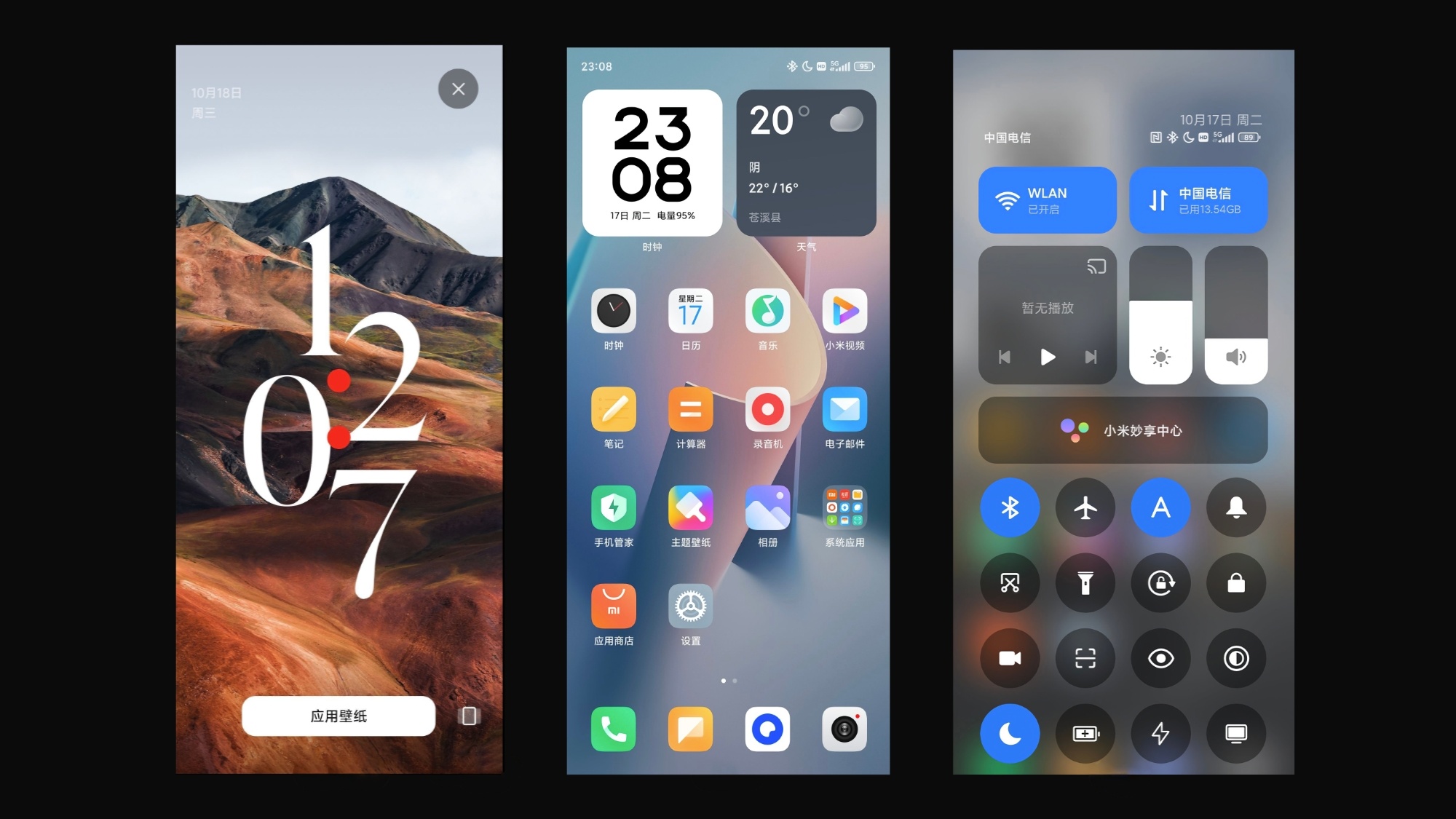
Your Xiaomi phone running HyperOS is probably faster than you think. Not because of the hardware, but because of settings most users never touch. I spent months digging through HyperOS menus, secret codes, and developer options to find the features that actually make a difference in daily productivity. Here is what I found and how you can set them up in minutes.
What You Need to Know
- The Sliding Sidebar is the single most useful productivity feature in HyperOS, giving you instant floating window access to any app
- HyperConnect lets you hand off apps between your phone, tablet, and PC seamlessly
- Workstation Mode turns your Xiaomi phone into a desktop computer when connected to an external monitor
- RAM Expansion converts storage into virtual memory for smoother multitasking
- Secret dialer codes unlock hidden hardware diagnostics and network controls
Enable the Sliding Sidebar for True Multitasking
The Sliding Sidebar is HyperOS's best kept secret for productivity. It gives you instant access to your favorite apps in floating window mode or split screen without leaving your current app.
Go to Settings > Additional Settings > Floating Windows > Sidebar and toggle it on. Once enabled, a small tab appears on the edge of your screen. Swipe it to reveal a dock of apps you can launch in floating windows. You can add any app to this dock, and the sidebar can be moved to either side of the screen.
This is a game changer for multitasking. Reply to a WhatsApp message while watching a YouTube video, take notes during a call, or reference a document while typing an email. The sidebar keeps your most-used tools one swipe away without cluttering your home screen.
Turn on RAM Expansion for Smoother Multitasking
If your phone has 6GB or 8GB of RAM, HyperOS can borrow a portion of your internal storage to use as virtual memory. This is not a gimmick. It genuinely helps keep more apps in memory when you are switching between them.
Go to Settings > Additional Settings > Memory Extension. You can choose how much storage to allocate, typically 2GB, 4GB, or 6GB. The tradeoff is minimal since modern UFS storage is fast enough that you will not notice the difference in daily use, but you will notice fewer app reloads.
Customize the Control Center for One-Handed Access
HyperOS gives you two Control Center layouts. The new split-shade design puts notifications on the left and toggles on the right. The classic mode keeps everything in one panel. You can switch between them in Settings > Notifications & Status Bar > Control Center Style.
For productivity, the split-shade design is better because it keeps toggles accessible without scrolling past notifications. You can also rearrange your quick toggles by pulling down the Control Center, tapping the edit icon, and dragging tiles into your preferred order. Put Wi-Fi, Bluetooth, Flashlight, and Hotspot at the top for one-tap access.
HyperOS 3 also introduces Inertial Swiping, which lets you swipe horizontally between notifications and toggles without reaching the top of the screen. This is a small change that saves a surprising amount of time.
Use HyperConnect for Cross-Device Workflows
HyperConnect is Xiaomi's answer to Apple's ecosystem. It lets you hand off apps between your phone, tablet, and laptop seamlessly. Pull down the Control Center and look for the Smart Hub section. If you are editing a document on your phone, you will see a floating icon for that app. Drag it toward your Xiaomi Pad or Book to instantly continue on the larger screen.
The Camera Share toggle is a hidden gem for professionals. It lets you use your phone's periscope telephoto lens as a wireless webcam for your PC during video calls. The quality is dramatically better than any built-in laptop camera.
You can also broadcast audio from your phone to up to five pairs of Xiaomi Buds 6 simultaneously using Auracast over Bluetooth LE Audio. This is useful for shared listening during meetings or travel.
Enable Workstation Mode for a Desktop Experience
If you own a Xiaomi tablet or connect your phone to an external monitor, Workstation Mode transforms the interface into a desktop-like layout. It optimizes the UI for mouse and keyboard input, enables true windowed multitasking, and gives you a taskbar for quick app switching.
Connect your device to an external display via USB-C or wirelessly, then pull down the Control Center and look for the Workstation Mode toggle. The interface switches to a desktop layout with resizable windows, a start menu-style app launcher, and drag-and-drop file support. It is not quite Samsung DeX, but it is close enough for most productivity tasks.
Activate Grayscale Mode for Focused Work
HyperOS has a built-in grayscale mode that removes all color from the display. This is surprisingly effective for reducing distractions and extending battery life on AMOLED screens.
Go to Settings > Accessibility > Vision > Grayscale and enable it. The monochrome display makes your phone less visually stimulating, which helps you stay focused on the task at hand. I use this when I need to write or read for extended periods. It also saves battery since AMOLED pixels consume less power when displaying black and white content.
Use Secret Codes for Advanced Diagnostics
HyperOS includes hidden dialer codes that unlock advanced tools. Open the Phone app and dial:
*#*#6484#*#*for the Factory Test Menu (CIT) with hardware diagnostics*#*#6485#*#*for detailed battery information including cycle count and health*#*#86583#*#*to toggle VoLTE carrier check*#06#to view your IMEI number instantly
These codes give you access to hardware testing, network controls, and system information that is otherwise buried in menus. Use them carefully, but they are invaluable for troubleshooting.
Bottom Line
HyperOS is packed with productivity features that most Xiaomi users never discover. The Sliding Sidebar, RAM Expansion, Workstation Mode, and HyperConnect alone can transform how you use your phone daily. Spend 15 minutes setting these up, and your phone will feel like a completely different device, one that works for you instead of against you.