
You remember the thumbnail was blue. There was a guy explaining something about batteries. Maybe it was a tech review. Or a documentary. The exact title is gone now, and scrolling through YouTube's homepage is getting you nowhere.
This scenario plays out constantly. With over 500 hours of video uploaded to YouTube every minute, finding one specific video without knowing its title can feel impossible. But YouTube and Google offer several built-in tools that make the search faster than you think. Here is exactly how to find that missing video, no matter how vague your memory is.
What You Need to Know
- YouTube stores your entire watch history indefinitely unless you have auto-delete enabled, making it the most reliable way to find any video you have watched before
- You can search within your watch history using Google My Activity, which indexes every video title and channel name you have watched
- YouTube search filters and operators let you narrow results by upload date, duration, and exact phrases even without knowing the title
- Google search with site:youtube.com lets you apply custom date ranges that YouTube's own filters do not offer
- If a video was deleted, the Wayback Machine can often recover it as long as you have the original URL
Method 1: Your Watch History Is the Fastest Route
YouTube records every video you watch while signed into your Google account. This history is the single most powerful tool for finding a lost video.
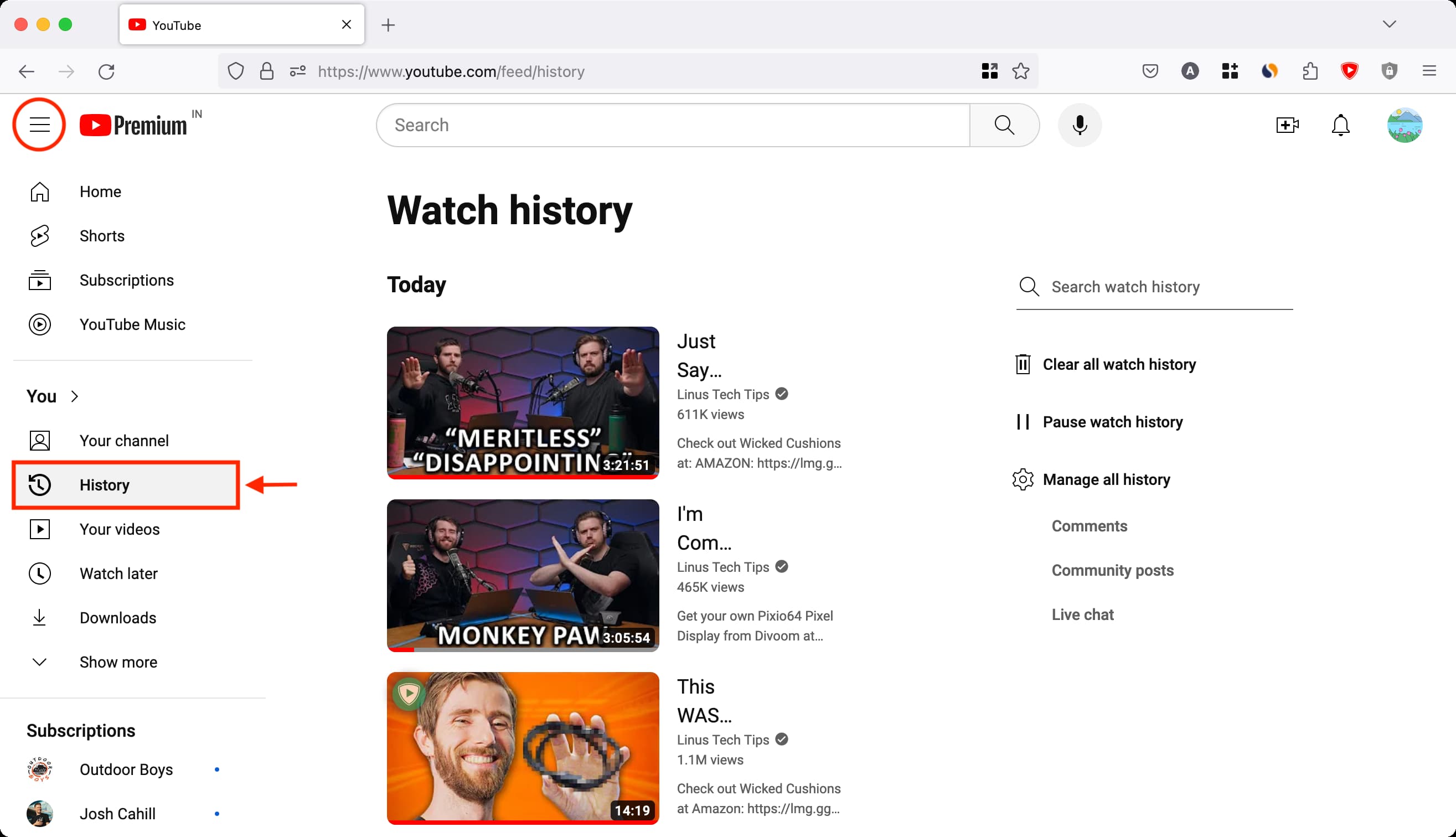
On desktop, click the sidebar menu icon (three horizontal lines) and select History. You will see a chronological list of every video you have watched, starting from most recent. Scrolling backward works, but for older videos, use the search function inside your history.
Click "Manage all history" at the top of the history page. This opens Google My Activity filtered to YouTube. You can search by any keyword you remember from the video title or the channel name. Google's official support documentation confirms this method works for any video you have watched while signed in.
On mobile, open the YouTube app, tap your profile picture, then tap Your channel. Scroll down to the History section and tap View all. The mobile app does not offer a search bar inside history, but you can switch to desktop mode in your mobile browser and follow the desktop steps above.
Method 2: Check Your Liked Videos and Watch Later
If you remember reacting to the video, it may already be saved. YouTube automatically maintains a Liked Videos playlist. Open the Library tab on mobile or the sidebar on desktop and look for Liked Videos. This playlist stores every video you have ever liked, sorted chronologically.
The Watch Later playlist is equally useful. If you saved the video intending to watch it later but never got around to it, or if you watched it after saving it, the link remains in this playlist. Both playlists are searchable on desktop using the same Google My Activity method.
Method 3: Use Browser History for Videos Watched While Signed Out
Watch history only works when you are signed in. If you watched a video without logging into your Google account, or if your watch history was paused, your browser still remembers the visit.
On Chrome, Edge, or Firefox, press Ctrl+H (Windows) or Cmd+H (Mac) to open your full browser history. Type "youtube.com/watch" in the search bar inside your history page. This filters the list to every YouTube video page you visited, regardless of whether you were signed in.
Browser history goes back months or longer depending on your settings. Chrome keeps history indefinitely until you clear it, though you can set auto-delete for 90 days in your Google Account settings. This method also works for videos that have since been deleted because the URL is stored locally before the video disappears.
Method 4: YouTube Search Filters and Operators
When history does not help, refine your YouTube search. The platform includes a powerful set of filters that most users never touch.
Run a search with any keywords you remember. On the results page, click the Filters button. You can narrow results by:
- Upload date: Last hour, today, this week, this month, or this year
- Duration: Under 4 minutes, 4 to 20 minutes, or over 20 minutes
- Type: Video, Channel, Playlist, or Movie
- Features: Live, 4K, HD, Subtitles, Creative Commons, 360 degree
- Sort by: Relevance, upload date, view count, or rating
Combine filters for faster results. If you know the video was uploaded in 2022 and was longer than 20 minutes, set the upload date filter to This year and duration to Over 20 minutes. This eliminates most irrelevant results.
Method 5: Use Advanced Search Operators
For precise searches, YouTube supports operators that work directly in the search bar:
- Quotation marks: "exact phrase here" forces YouTube to match those words in that exact order. Use this if you remember a specific line from the video
- Minus sign: electric car -tesla excludes videos about Tesla from your electric car search
- before:2023 and after:2020 filter videos by upload date range
- allintitle: searches only within video titles rather than descriptions
For example, searching "why batteries die" after:2023 returns only videos uploaded after 2023 that contain that exact phrase in their title or description.
Method 6: Use Google Search With site:youtube.com
Google offers a custom date range tool that YouTube does not. Go to Google and search for site:youtube.com followed by your keywords. Click Tools below the search bar, then Any time, and select Custom range. You can enter a specific date range down to the day.
This is useful when you know approximately when you watched the video but cannot find it in YouTube's own search. Google indexes YouTube pages more deeply than YouTube's internal search, so this method sometimes surfaces videos that do not appear in YouTube results.
Method 7: Reddit Communities for Hard Cases
When all else fails, ask humans. Reddit has dedicated communities that specialize in identifying lost videos.
r/tipofmytongue is the largest. Describe everything you remember about the video: the content, the channel name if you recall any part of it, the approximate upload year, the thumbnail colors, the accent of the speaker, any distinctive music or sound effects. Members of this community have successfully identified videos from remarkably vague descriptions.
r/helpmefind and r/youtube are also worth trying. Include any URLs you have, even if the video is deleted. A deleted video URL still contains the 11-character video ID, which community members can use to search archives.
Method 8: Recover Deleted Videos With the Wayback Machine
If the video you are looking for has been deleted, your watch history or browser history may still contain the original URL. Copy that URL and paste it into the Wayback Machine at archive.org/web.
The Wayback Machine takes snapshots of web pages, including YouTube video pages. If a snapshot exists, you can see the video title, description, channel name, and in some cases, play the video directly. This method requires the original URL, so it works best when combined with Methods 1 through 3.
Method 9: Third-Party Extensions for Future Protection
Several Chrome extensions can prevent this problem from happening again. YouTube Watch History Pro logs every video that appears on your screen including videos in your feed, search results, and watch-next sidebar that YouTube's own history does not record. The data stays local on your device.
The Wayback Machine Chrome extension lets you check for archived versions of a video page with one click, before the video disappears.
Bottom Line
The fastest way to find a lost YouTube video is your own watch history combined with Google My Activity search. If that does not work, browser history, search filters, and Google's custom date range cover most scenarios. For deleted videos, the Wayback Machine is your best bet. And if you still cannot find it, Reddit communities have an impressive track record of identifying videos from the slimmest of details.