
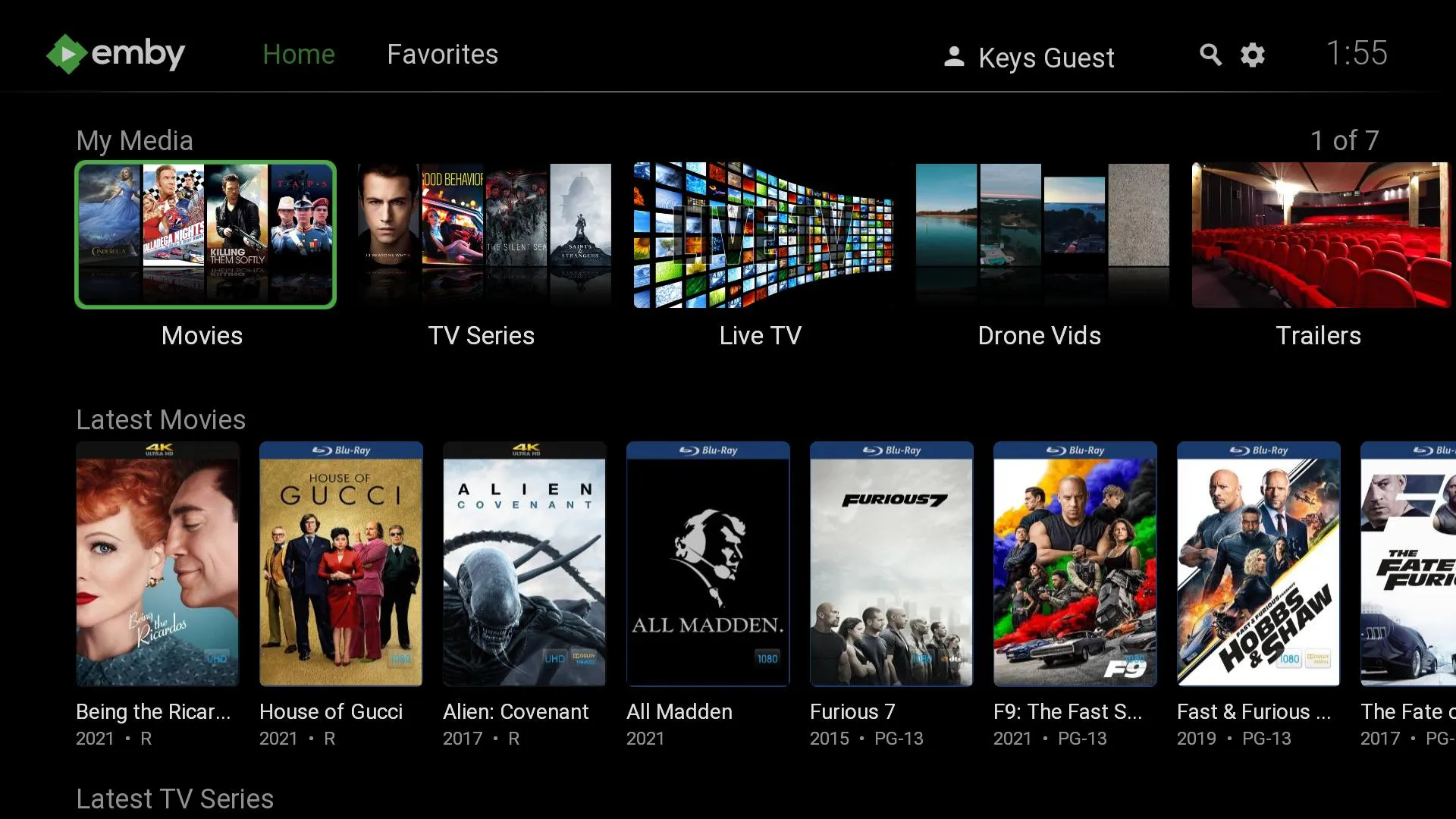
I have been running an Emby server for over four years now and the one complaint I hear from everyone who tries it is the same: the interface feels dated. The default Emby look works fine for browsing your library but it does not have the polish of Plex or the clean lines of Jellyfin with a good skin. What most people do not realize is that Emby is actually one of the most customizable media servers out there. You just need to know where to tweak. These are the four changes I make on every single Emby install.
What You Need to Know
- Emby supports custom CSS that can completely overhaul the interface. Paste a single line in Dashboard settings to apply community themes
- The home screen can be decluttered to remove Premiere upgrade prompts and unwanted sections using a few lines of CSS
- A third-party swiper plugin replaces the default static rows with a Netflix-style auto-rotating banner carousel
- Emby's built-in Branding settings let you replace the login screen, add custom logos, and rename your server for a personal touch
1. Apply a Custom CSS Theme
The single biggest visual upgrade you can make to Emby costs nothing and takes about 30 seconds. Emby has a built-in Custom CSS field under Dashboard > General that accepts any CSS you throw at it. The community has built dozens of themes that range from subtle color tweaks to complete interface overhauls.
The Embymalism theme is a great starting point. It strips out the dated gradients, flattens the card designs, and applies a clean dark palette that makes your media library look like a modern streaming service. To install it, open your Emby Dashboard, go to General, scroll to the Custom CSS Code box, and paste this single line:
@import url("https://cdn.jsdelivr.net/gh/v1rusnl/Embymalism@main/Embymalism.css");
Click Save and refresh your browser. The entire interface changes immediately: the header goes transparent, cards get rounded corners, and the home screen grid lines up with proper spacing.
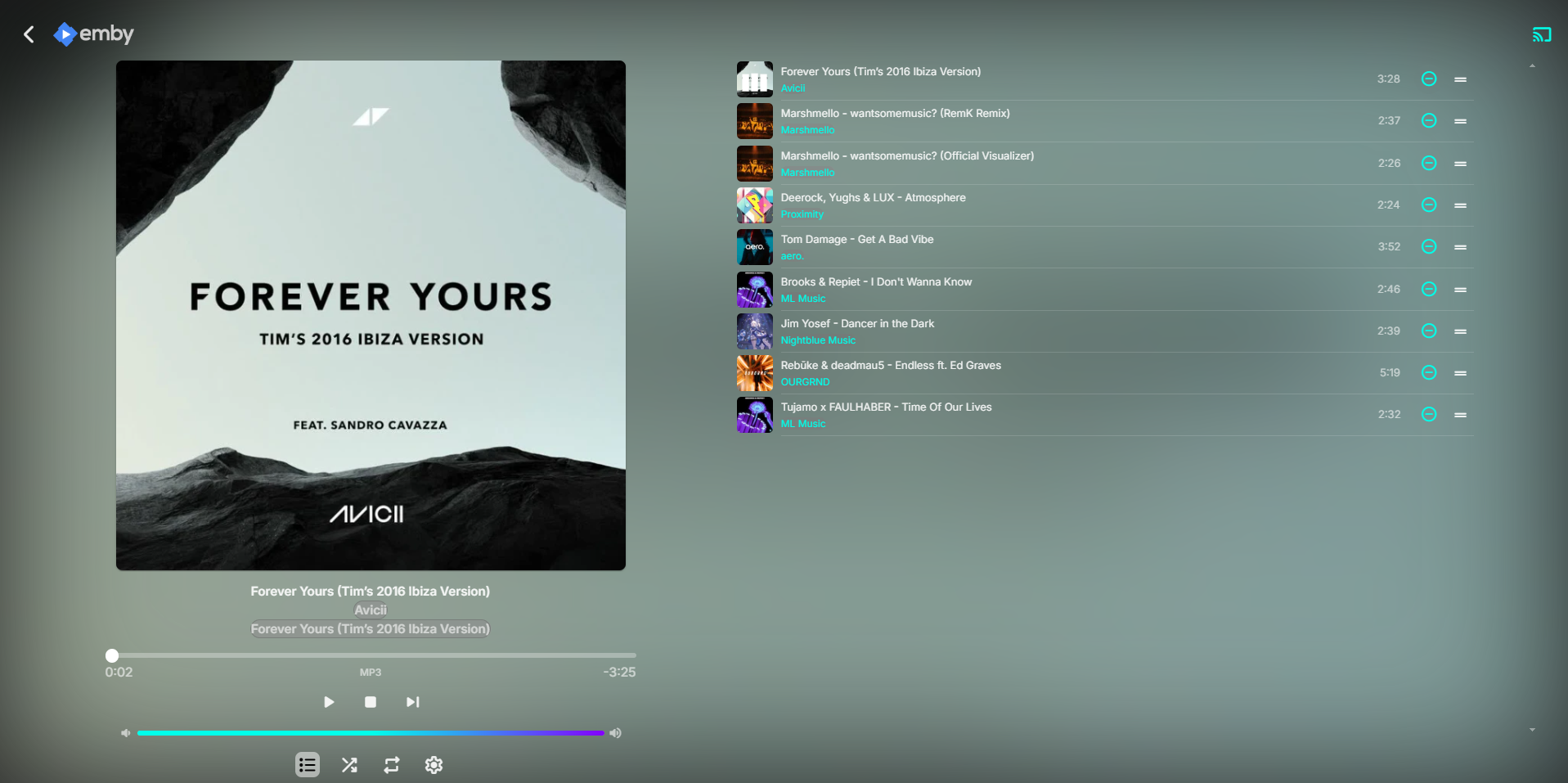
If Embymalism is not your style, Ben Z over at Emby Dark Themes offers a collection of accent color presets. You pick a color, copy a CSS line, and paste it into the same field. The accent color applies to buttons, progress bars, selection highlights, and hover states throughout the app. A popular choice is deep teal, which pairs well with most movie poster color palettes.
2. Declutter the Home Screen
Once you have a theme applied, the next step is removing the elements that remind you this is a freemium product. Emby's default home screen includes a persistent "Get Emby Premiere" button in the top navigation, a large promotional section advertising Premiere features, and in some views, a "Similar Content" section that duplicates what you already see.
All of these can be hidden with CSS. Open the same Custom CSS Code box in Dashboard > General and add these lines:
.btnHeaderPremiere {
  display: none !important;
}

.appInfoSection {
  display: none !important;
}

.similarContent {
  display: none !important;
}
The first line removes the Premiere button from the header. The second removes the promotional section that often appears at the bottom of the home screen. The third removes the "Similar Content" row from media detail pages, which frees up vertical space and makes the layout feel less busy.
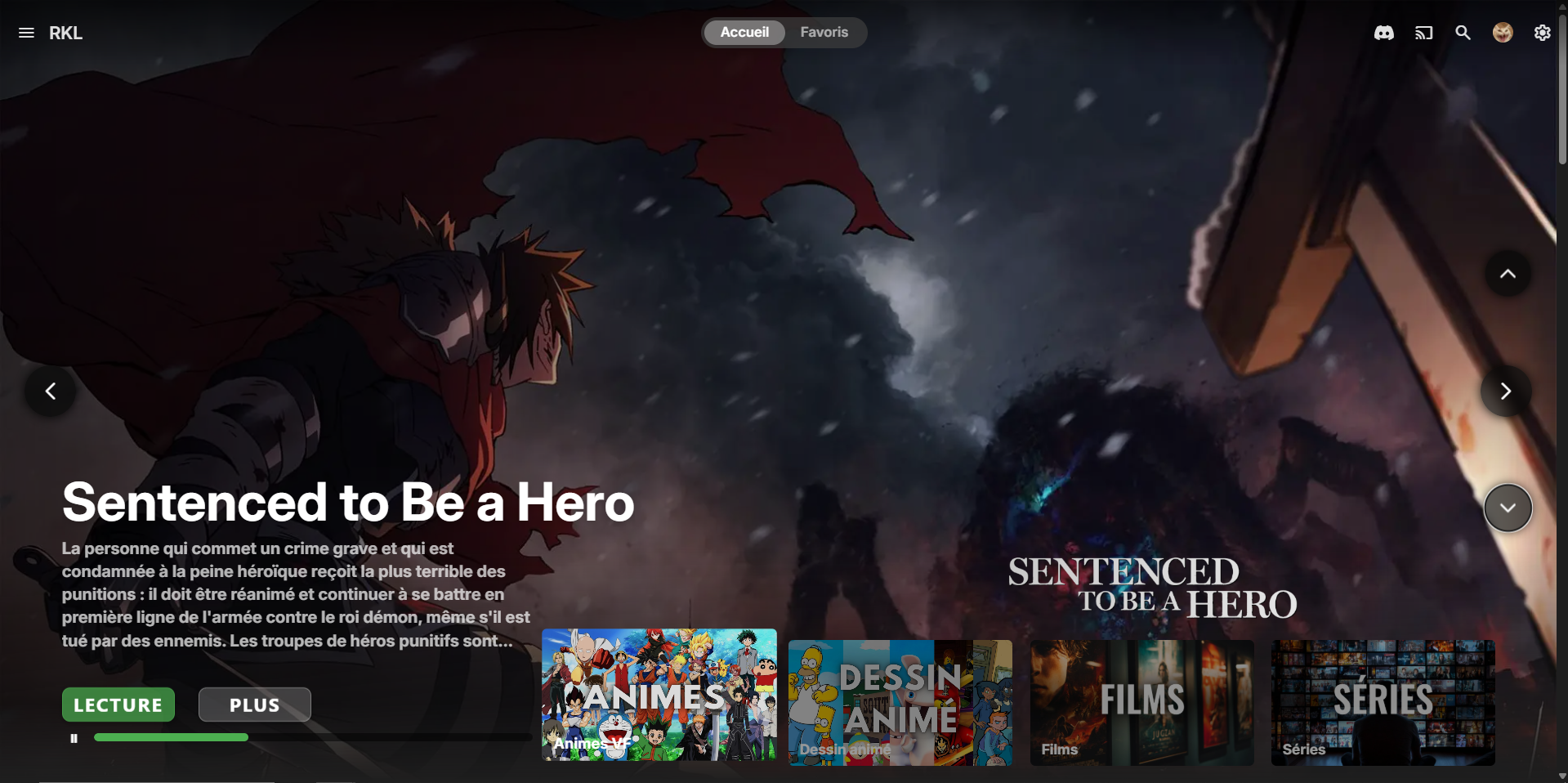
If you want to go further, you can also hide the "Get Premiere" link in the sidebar menu using this additional line:
.lnkPremiere {
  display: none !important;
}
The result is a clean, distraction-free interface that looks like a paid product. No upgrade prompts, no sections selling you features you already decided not to buy.
3. Add a Netflix-Style Home Banner Carousel
This tweak requires a bit more effort but it transforms the home screen more than any theme or CSS cleanup. The Emby Home Swiper UI plugin replaces the static top row on your home screen with a full-width auto-rotating banner carousel that shows large backdrop images from your recently added media.
The project by sohag1192 (and its maintained fork by Rykalout) swaps out the default home page content with a Swiper.js carousel. It pulls backdrops from your libraries and displays them in a hero format with the movie or show title, a description, and a progress bar showing when the next slide will appear.
To install it, download the home.js file from the GitHub repository and place it in your Emby server's system/dashboard-ui folder. Then edit the index.html file in the same folder to add a script reference before the closing </body> tag:
<script src="home.js"></script>
After a server restart, your home screen will show a rotating banner of your media with smooth transitions, a pause/play button, and larger text that does not get truncated.
Because this modifies Emby's dashboard files, future server updates may overwrite the changes, so keep a backup of your modifications.
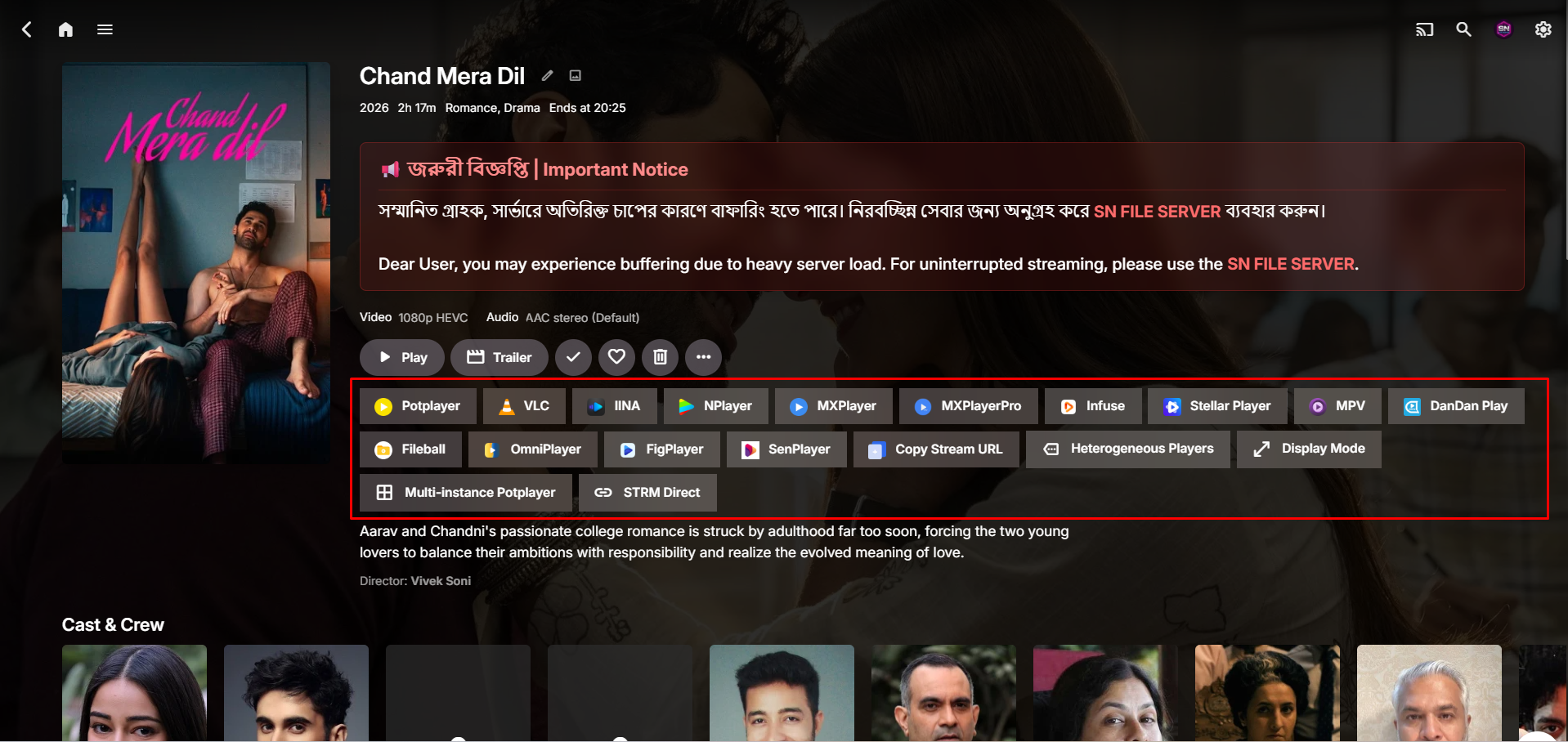
You can customize which libraries the carousel pulls from by editing the allowedLibraries array in home.js. Most users limit theirs to Movies and TV Shows so the carousel does not cycle through home videos or music albums.
4. Customize the Branding and Login Screen
The final touch is making Emby feel like your own service rather than generic server software. Emby's built-in Branding settings under Dashboard > Branding let you replace the default login screen with your own artwork and add a custom logo that appears throughout the interface.
Upload a 1920x1080 background image for the login screen. Emby will display it behind the login form with a dark overlay that keeps the form readable. A clean gradient or a dark movie-themed backdrop works well.
Next, upload a custom logo image. Emby displays this in the top-left corner of the interface and on the login page. A simple wordmark or icon works best. Keep it lightweight so it does not slow down the initial page load.
You can also change the server name that appears in the browser tab title and the header. A clean name like "Stream" or "Media" reads better than the default "Emby Server" label.
The Branding section also has a field for a custom CSS URL, which is where you can point to your theme file if you host it externally. This is handy if you manage multiple servers and want the same theme on all of them without pasting the CSS into each one.
Bottom Line
Emby does not need to feel like a media server from another era. After applying these four tweaks, most people who connect to my server assume I am running a completely different media platform. That is the biggest compliment Emby can get. Depending on your experience, expect 10-20 minutes to apply everything, and the result is an interface that looks as premium as anything Plex or Netflix offers.